
Latency Test
Measure latency from your iPhone or iPad to up to six targets at once and watch every request on a live chart. A timeout is shown as a timeout, never drawn as a latency.

What it measures
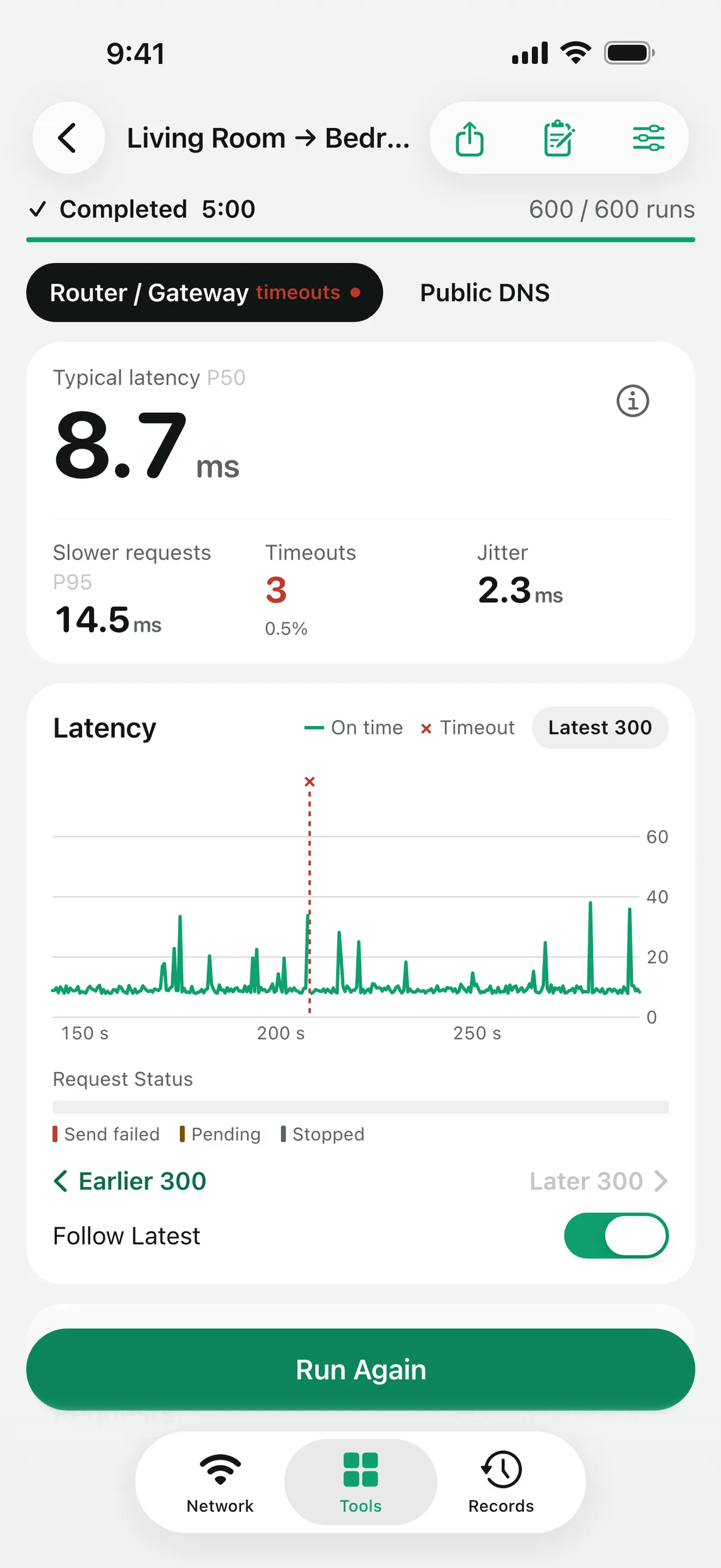
Each run sends Ping (ICMP) requests, or UDP probes to a test peer you run yourself, at the interval and count you choose. For each target you get the typical latency (P50), slower requests (P95 and P99), jitter, the timeout rate and the longest run of timeouts.
Jitter here is the mean difference in round-trip time between consecutive requests that both got an on-time reply. A timeout breaks the chain instead of being bridged.
Read the chart
The chart plots every reply as it arrives. With several targets, each gets a row with its typical latency, timeouts and a small curve on a shared scale; tap a row for its full chart. Requests steps through single requests, and you can add a note while the test runs, for example when you move to another room. Timeouts are marked on the chart rather than plotted as a latency.
While a test runs, its progress also shows on the Lock Screen and, on supported iPhones, in the Dynamic Island, where you can stop it.
Keep and compare runs
Every finished run is saved as a report on your device. Put two runs side by side to overlay their latency curves, or share a finished test as a card image.
Questions
Do I need a server to use it?
Not for Ping. Enter any host name or address, such as your router or a public server. UDP mode measures to a test peer that you run on a computer you control.
Why are some requests shown as timeouts?
No reply arrived in time. Linkalyst records a timeout rather than inventing a value, so timeouts are counted separately from the latency figures.
Does a low ping mean my connection is fast?
Not on its own. Latency is how long a reply takes, not how much data the connection carries. To measure download and upload, use the Internet Speed Test in the app.
More tools
Linkalyst is free on the App Store for iPhone and iPad.