
Route Trace
Follow the path from your iPhone or iPad to any host, router by router, and see where latency rises. The latency at each hop is drawn on a chart, over IPv4 or IPv6.

Follow the path from your iPhone or iPad to any host, router by router, and see where latency rises. The latency at each hop is drawn on a chart, over IPv4 or IPv6.
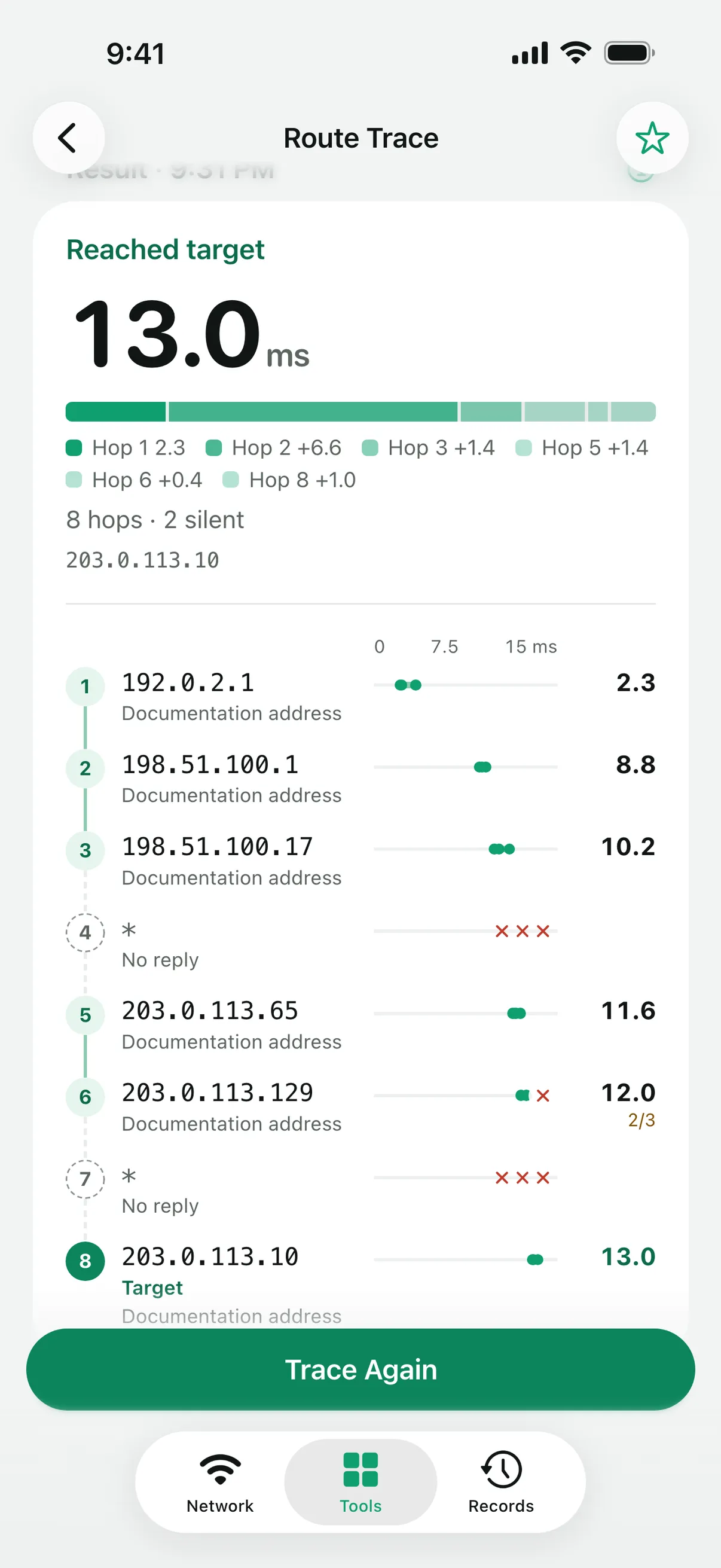
Route Trace sends ICMP probes with a hop limit that rises by one each time. The router where a probe runs out of hops sends back a reply, which reveals the path one router at a time. Choose up to 30 hops (16 by default) and one to three probes per hop; each probe waits up to a second.
Latency that rises at one hop and stays higher after it points at that part of the path. A single slow hop followed by quick ones usually means only that the router answers probes slowly.
Turn on host name lookup to see each router’s name. With IP Lookup turned on in Settings, each public hop also shows its network (ASN), organization and approximate region, and hops are grouped by network.
Every trace is saved as a report in Records. With Linkalyst Plus, put two traces side by side to see whether the path changed.
Many routers don’t answer probes, or limit how often they answer. A hop without a reply doesn’t mean traffic stops there, as long as later hops answer.
Latency Test measures one target many times to show how steady it is. Route Trace measures every hop on the way, to show where along the path the delay begins.
It is off by default. When you turn it on, the public addresses shown in results are sent to FreeIPAPI, an independent service, to get their country, region, network organization and ASN. See the Privacy Policy.
Linkalyst is free on the App Store for iPhone and iPad.